Facets and Sorting Configuration
Facets and sorting options enhance the ATS experience by allowing customers to filter and organize search results. This guide explains how to configure both features in the PA DiscoveryOS Shopify App.
Overview
Facets (Filters)
Facets appear as filters in search results, allowing customers to narrow down products based on specific attributes such as:
- Price ranges
- Brands
- Colors
- Sizes
- Categories
- Custom attributes
Sorting Options
Sorting options allow customers to reorder search results by:
- Price (low to high, high to low)
- Newest arrivals
- Product name (A-Z, Z-A)
- Relevance
- Custom fields
Facet Configuration
Accessing Facet Configuration
- Navigate to the app home page
- Click Configuration in the navigation
- Select the Facet Config tab
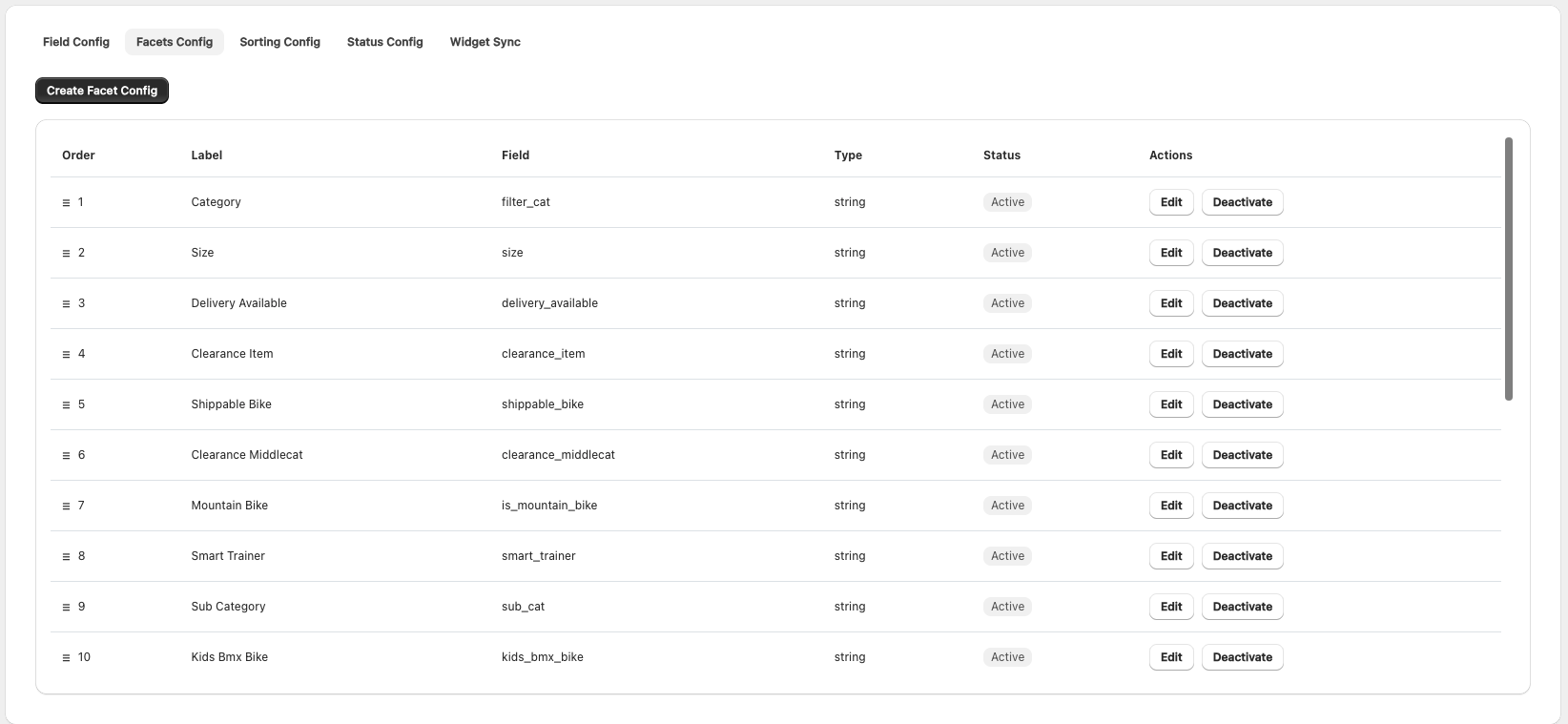
Creating a Facet
To add a new facet:
- Click Add Facet Configuration
- A form modal will appear
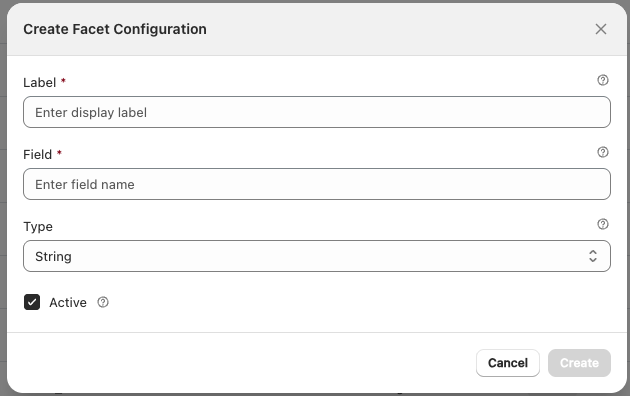
Facet Configuration Parameters
| Parameter | Description | Required |
|---|---|---|
| Label | Display title for the filter (e.g., "Price", "Brand", "Color") | Yes |
| Field | The field name to filter on | Yes |
| Type | Data type: String for text filters or Number for range filters | Yes |
| Active | Enable the facet in search results | Yes |
Field Selection
The Field parameter must reference a field that exists in your product data:
- Standard Fields: Use Shopify field names (e.g.,
vendor,productType,tags) - Custom Fields: Use the Key from your Field Configuration
The Field value must exactly match the key defined in Field Configuration. For example, if you configured a metafield with key brand_name, use brand_name as the Field value here.
Facet Types
String Type
Use for text-based filters where customers select from discrete values.
Examples:
- Brand names
- Product categories
- Colors
- Sizes
- Tags
Display: Appears as a list of checkboxes
Number Type
Use for numeric filters where customers select from ranges.
Examples:
- Price
- Weight
- Dimensions
- Ratings
Display: Appears as a range slider or min/max inputs
Example Facet Configurations
Example 1: Category Filter
Label: Category
Field: filter_cat
Type: String
☑ Active
Result: Customers can filter by product Category
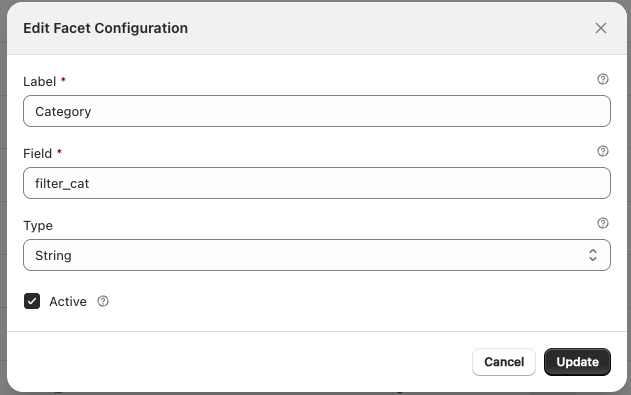
Example 2: Price Range Filter
Label: Price
Field: price
Type: Number
☑ Active
Result: Customers can filter by price range with a slider
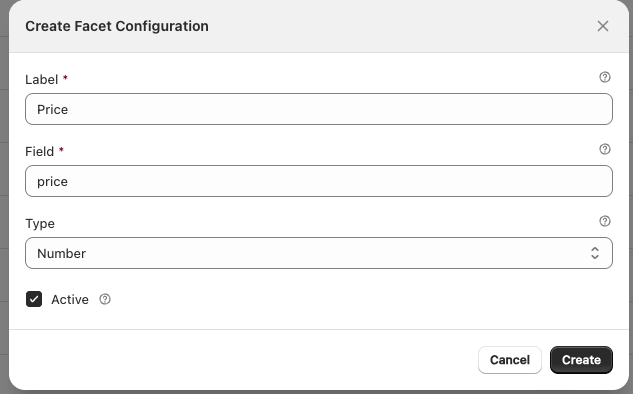
Managing Facet Order
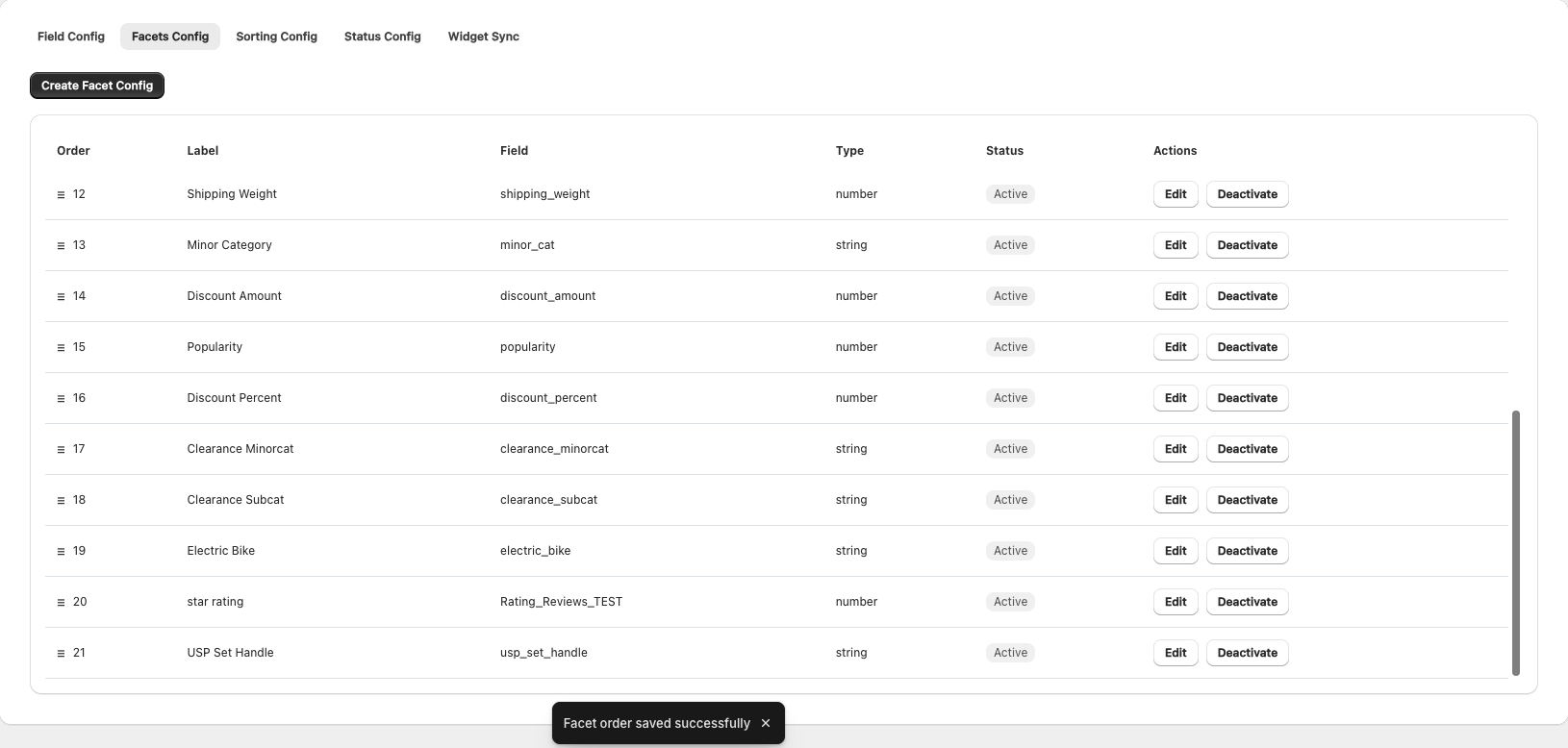
Facets appear in search results in the order they're listed in the configuration table.
Reordering Facets
- In the Facet Config tab, locate the facet list
- Click and drag the handle icon (☰) on the left of each row
- Drag the facet to the desired position
- Release to drop in the new position
- The order is saved automatically
Viewing Facet Configurations
The Facet Config tab displays all configured facets in a table:
| Column | Description |
|---|---|
| Order | Drag handle for reordering |
| Label | Display name of the facet |
| Field | Field name being filtered |
| Type | String or Number |
| Status | Active or Inactive |
| Actions | Edit or Delete |
Editing a Facet
- Locate the facet in the configuration list
- Click the Edit icon (pencil)
- Modify the configuration in the modal
- Click Save
After modifying facet configurations, the changes will take effect within 30 minutes in the Search API. No product sync is required.
Activating/Deactivating Facets
Toggle the Active checkbox to enable or disable a facet without deleting the configuration.
- Active: Facet appears in search results
- Inactive: Facet is hidden from search results
Sorting Configuration
Accessing Sorting Configuration
- Navigate to the app home page
- Click Configuration in the navigation
- Select the Sorting Config tab
Creating a Sort Option
To add a new sort option:
- Click Add Sorting Configuration
- A form modal will appear
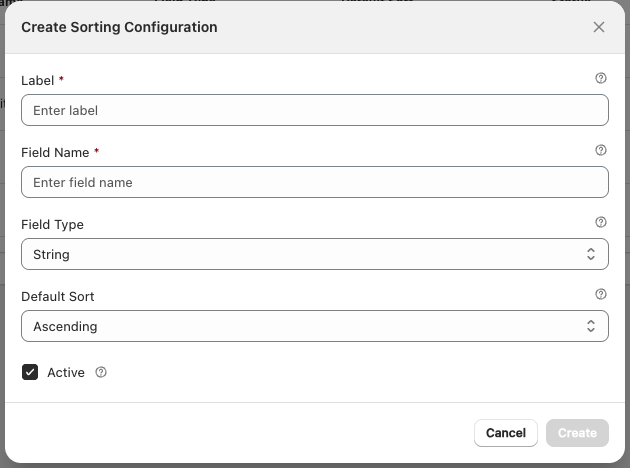
Sorting Configuration Parameters
| Parameter | Description | Required |
|---|---|---|
| Label | Display title for the sort option (e.g., "Price: Low to High") | Yes |
| Field Name | The field to sort by | Yes |
| Field Type | Data type: String or Number | Yes |
| Default Sort | Default sort order: Ascending or Descending | Yes |
| Active | Enable the sort option in search results | Yes |
Field Selection
The Field Name parameter must reference a field that exists in your product data:
- Standard Fields: Use Shopify field names (e.g.,
price,title,createdAt) - Custom Fields: Use the Key from your Field Configuration
Sort Order
- Ascending: Sorts from lowest to highest (A-Z, 0-9, oldest to newest)
- Descending: Sorts from highest to lowest (Z-A, 9-0, newest to oldest)
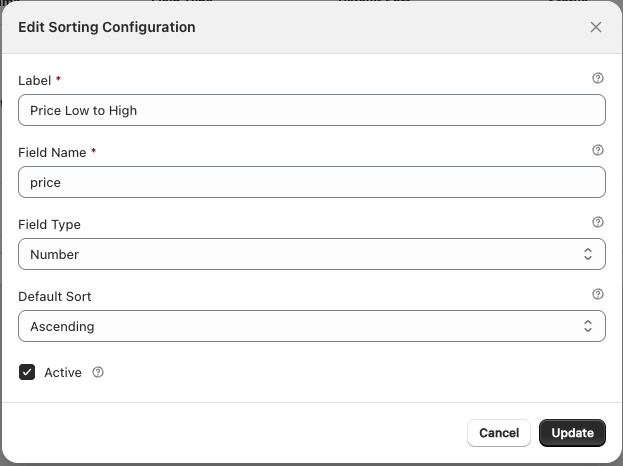
Example Sorting Configurations
Example 1: Price Low to High
Label: Price: Low to High
Field Name: price
Field Type: Number
Default Sort: Ascending
☑ Active
Result: Sorts products from lowest to highest price
Viewing Sorting Configurations
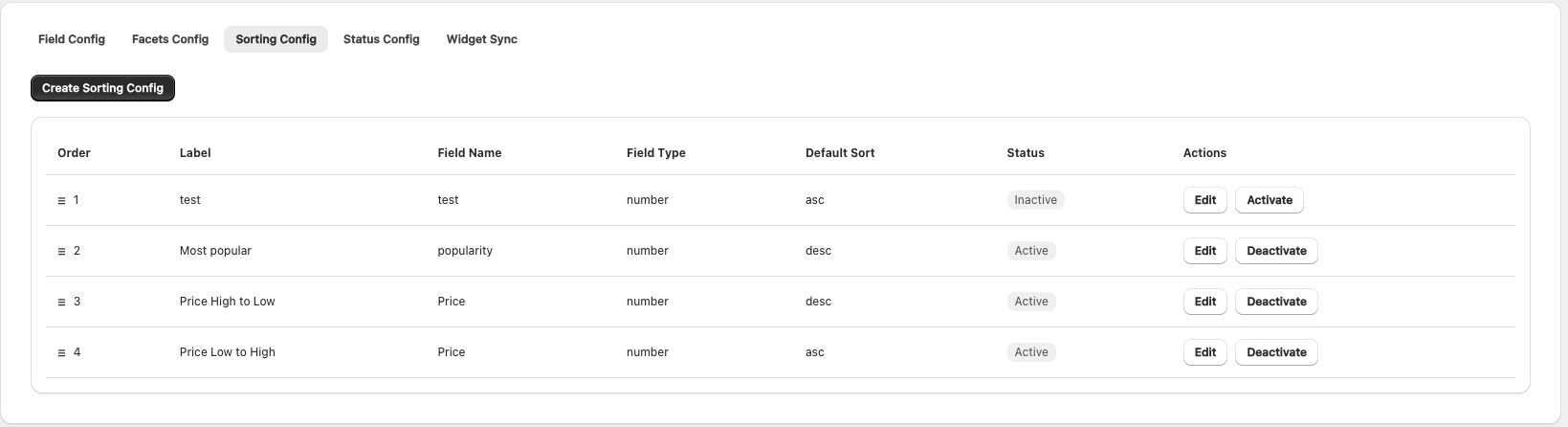
The Sorting Config tab displays all configured sort options in a table:
| Column | Description |
|---|---|
| Label | Display name of the sort option |
| Field Name | Field being sorted |
| Field Type | String or Number |
| Sort Order | Ascending or Descending |
| Status | Active or Inactive |
| Actions | Edit or Delete |
Editing a Sort Option
- Locate the sort option in the configuration list
- Click the Edit icon (pencil)
- Modify the configuration in the modal
- Click Save
Activating/Deactivating Sort Options
Toggle the Active checkbox to enable or disable a sort option without deleting the configuration.
- Active: Sort option appears in search results
- Inactive: Sort option is hidden from search results
Managing Sort By Order
Sort By appear in search results in the order they're listed in the configuration table.
Reordering Sort
- In the Sorting Config tab, locate the Sort list
- Click and drag the handle icon (☰) on the left of each row
- Drag the sort to the desired position
- Release to drop in the new position
- The order is saved automatically