Field Configuration
Field Configuration is the most critical part of setting up the PA DiscoveryOS Shopify App. It defines which product and variant fields are synchronized with Particular Audience and how they are indexed for ATS, recs etc.
Understanding Shopify Product Data
Shopify products contain two types of fields:
1. Standard Fields
These are built-in Shopify fields that exist on every product. The app automatically tracks these standard fields:
| Field | Description | Location |
|---|---|---|
productId / legacyResourceId | Unique product identifier | Product |
title | Product name | Product |
status | Product status (ACTIVE, ARCHIVED, DRAFT) | Product |
vendor | Product vendor/supplier | Product |
images | Product image collection | Product |
priceRangeV2 | Price range information | Product |
description / descriptionHtml | Product description | Product |
handle | URL-friendly product identifier | Product |
variants | Product variant collection | Product |
tags | Product tags | Product |
collections | Associated collections | Product |
publishedAt | Publication timestamp | Product |
createdAt | Creation timestamp | Product |
updatedAt | Last update timestamp | Product |
productType | Product type categorization | Product |
onlineStorePreviewUrl | Preview URL | Product |
totalInventory | Total inventory across variants | Product |
tracksInventory | Whether inventory is tracked | Product |
2. Custom Metafields
Metafields are custom fields that store additional data specific to your store. These must be explicitly configured in Field Configuration.
Metafields exist at two levels:
- Product Metafields: Custom data attached to products
- Variant Metafields: Custom data attached to product variants
Accessing Field Configuration
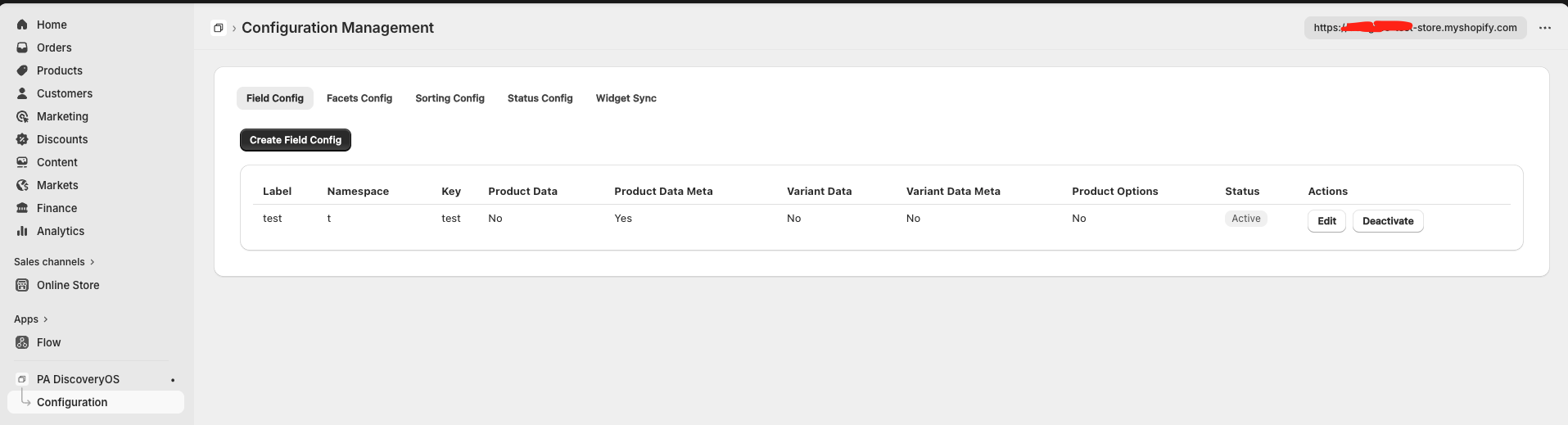
- Navigate to the app home page
- Click Configuration in the navigation
- Select the Field Config tab
Creating a Field Configuration
Basic Configuration
To add a new field configuration:
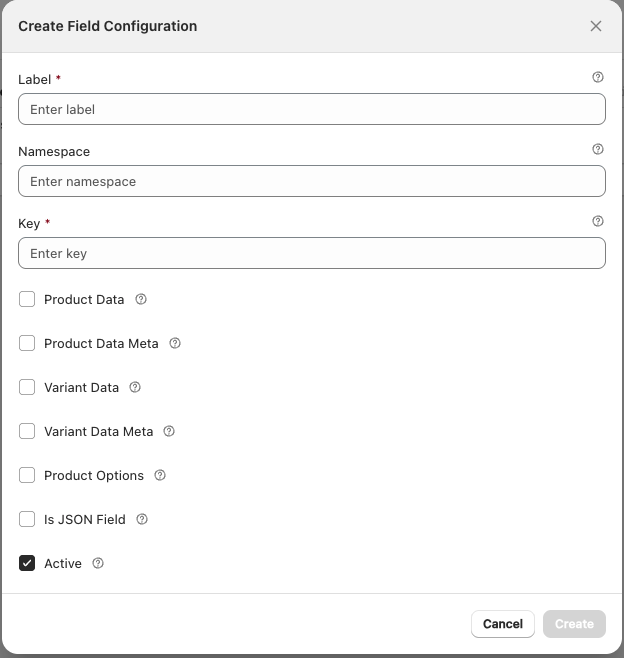
- Click Create Field Config
- A form modal will appear
Configuration Parameters
| Parameter | Description | Required |
|---|---|---|
| Label | Display name for the metafield (e.g., "Highlight 1 Text") | Yes |
| Namespace | Shopify metafield namespace (e.g., pa, custom, content) | No |
| Key | Unique identifier for the metafield (e.g., highlight_1_text) | Yes |
| Product Data | Check if this is a standard product field | Conditional* |
| Product Data Meta | Check if this is a product metafield | Conditional* |
| Variant Data | Check if this is a standard variant field | Conditional* |
| Variant Data Meta | Check if this is a variant metafield | Conditional* |
| Product Options | Check for variant fields that need individual indexing | No |
| JSON Field | Check whether any fields included in the JSON metafield require individual indexing | No |
| Active | Enable tracking for this field | Yes |
*At least one data type checkbox must be selected.
Field Type Selection Guidelines
Choose the appropriate checkbox based on your field type:
| Field Type | Select |
|---|---|
Standard Shopify product field (e.g., title, vendor) | Product Data |
| Custom product metafield | Product Data Meta |
Standard Shopify variant field (e.g., price, sku) | Variant Data |
| Custom variant metafield | Variant Data Meta |
| Variant field requiring separate indexing | Product Options |
Use Product Options for variant-level fields that should be indexed separately. For example, if you want to search specifically by variant color or size options, enable this checkbox.
Example: Simple Product Metafield
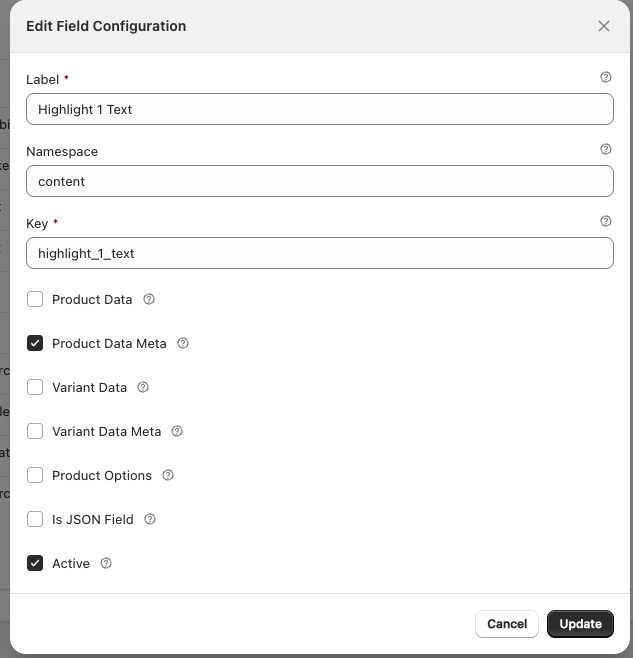
Let's configure a simple text metafield called "Highlight 1 Text":
Label: Highlight 1 Text
Namespace: content
Key: highlight_1_text
☑ Product Data Meta
☐ Product Data
☐ Variant Data
☐ Variant Data Meta
☐ Product Options
☑ Active
JSON Field Processing
Many metafields contain complex JSON data structures. The app provides three processing types to handle different JSON formats.
JSON Processing Types
| Type | Use Case | Example Metafield |
|---|---|---|
| Options | Array of simple values stored as grouped options | pa.key_features |
| Standard | Flat JSON objects with key-value pairs | pa.pa_attributes, pa.supplier |
| Nested | Complex nested structures with arrays of objects | pa.techSpecs, pa.dimensions |
Processing Type 1: Options
Use Case: Array of simple values to be stored as grouped options
Example Metafield: pa.key_features
Sample JSON Data
[
  { "order": 1, "value": "6.5\" Super Retina XDR display" },
  { "order": 2, "value": "A19 Pro Chip" },
  { "order": 3, "value": "Up to 27 hour battery life" },
  { "order": 4, "value": "48MP Fusion rear camera" },
  { "order": 5, "value": "Crash detection" },
  { "order": 6, "value": "Dual eSIM Only" }
]
Configuration
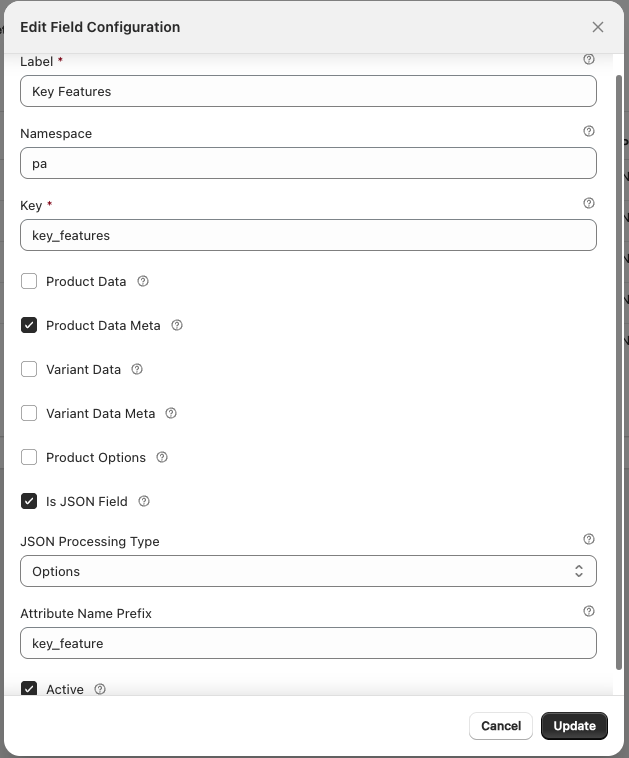
Label: Key Features
Namespace: pa
Key: key_features
☑ Product Data Meta
☑ Active

JSON Processing:
  Processing Type: Options
  Attribute Name Prefix: key_features (optional)
Result: Each value in the array is stored as a separate option with the attribute key key_features.
If left blank, the metafield key is used as the attribute name. If set, it overrides the default naming.
Processing Type 2: Standard
Use Case: Flat JSON objects with key-value pairs
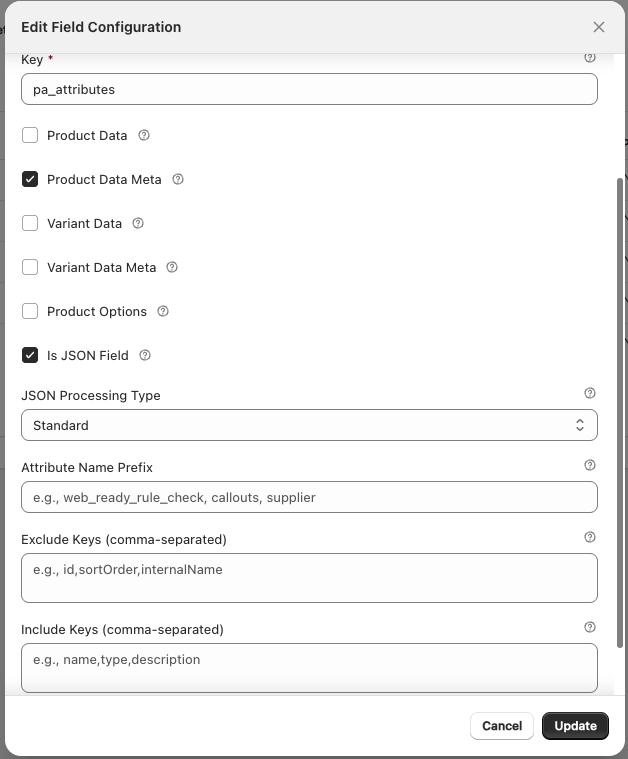
Example 1: All Fields
Metafield: pa.pa_attributes
Sample JSON Data:
{
  "general-information_colour": "Gold",
  "connections_bluetooth": "Bluetooth v6",
  "power-and-charging_battery": "Up to 27 hours local video playback",
  "cameras_front-camera": "18MP Center Stage: f/1.9 aperture",
  "general-information_family": "iPhone Air",
  "product-dimensions_product-height-mm": 156.2,
  "connections_sim-card-type": "Dual eSIM"
}
Configuration:
Label: PA Attributes
Namespace: pa
Key: pa_attributes
☑ Product Data Meta
☑ Active

JSON Processing:
  Processing Type: Standard
  Attribute Name Prefix: (leave blank)
  Exclude Keys: (leave blank)
  Include Keys: (leave blank)
Result: All key-value pairs are stored as separate attributes.
Example 2: Include Specific Fields
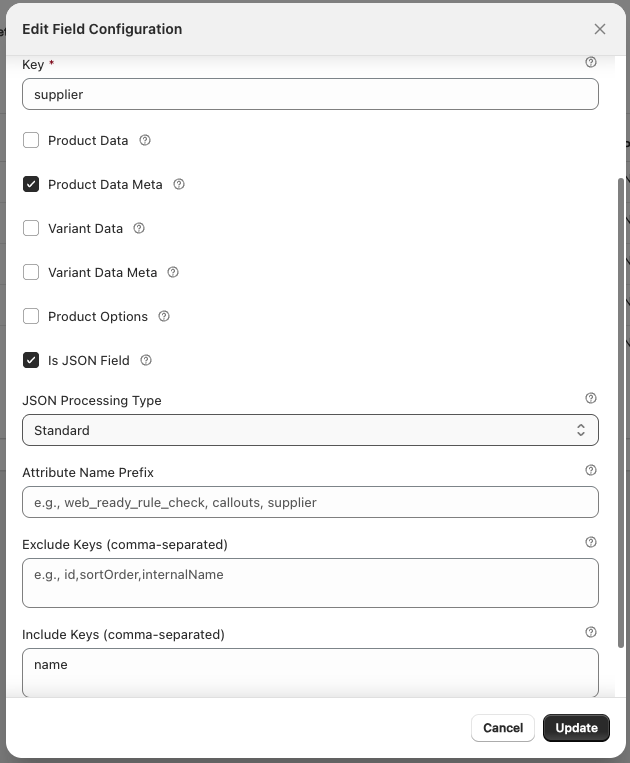
Metafield: pa.supplier
Sample JSON Data:
{
  "id": "22487",
  "type": "Supplier",
  "name": "APPLE PTY LTD"
}
Configuration:
Label: Supplier
Namespace: pa
Key: supplier
☑ Product Data Meta
☑ Active

JSON Processing:
  Processing Type: Standard
  Attribute Name Prefix: (leave blank)
  Exclude Keys: (leave blank)
  Include Keys: name
Result: Only the name field is extracted and stored as an attribute.
Example 3: Exclude Specific Fields
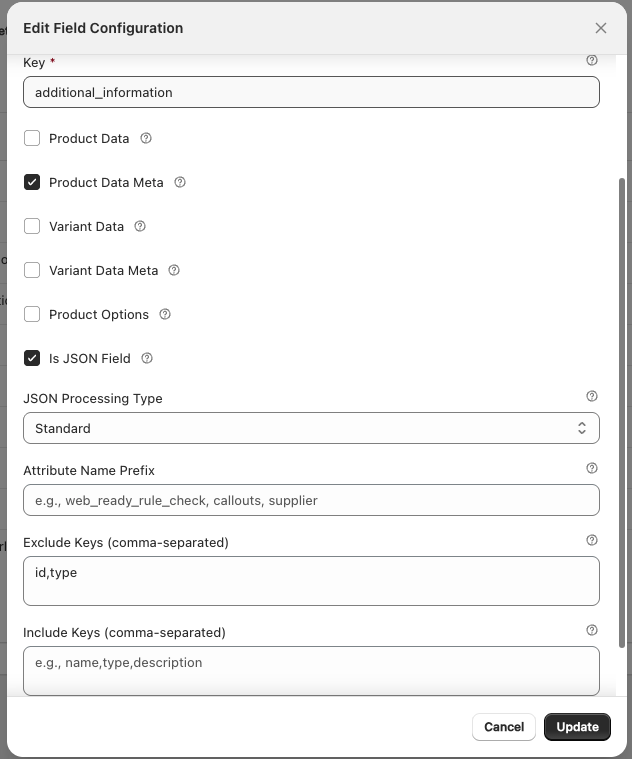
Metafield: pa.additional_info
Sample JSON Data:
[
  {
    "id": 146,
    "type": "WebAdditionalInfo",
    "descText": "No physical SIM card slot available. Check with your service provider for eSIM compatibility.",
    "heading": "eSIM Only Device",
    "internalName": "eSIM Only Device Warning"
  }
]
Configuration:
Label: Additional Info
Namespace: pa
Key: additional_information
☑ Product Data Meta
☑ Active

JSON Processing:
  Processing Type: Standard
  Attribute Name Prefix: (leave blank)
  Exclude Keys: id,type
  Include Keys: (leave blank)
Result: All fields except id and type are stored as attributes (descText, heading, internalName).
- Include Keys: Only specified fields are extracted (whitelist)
- Exclude Keys: All fields except specified ones are extracted (blacklist)
- If both are empty, all fields are extracted
- Cannot use both Include and Exclude simultaneously
Processing Type 3: Nested
Use Case: Complex nested structures with arrays of objects
Example Metafield: pa.techSpecs
Sample JSON Data
[
  {
    "name": "Screen Technology",
    "sortOrder": 0,
    "customDimensions": false,
    "labels": [
      {
        "attribute": "Screen Size (Inches)",
        "value": "6.5",
        "sortOrder": "0",
        "featured": false
      },
      {
        "attribute": "Display",
        "value": "Super Retina XDR OLED",
        "sortOrder": "1",
        "featured": true
      },
      {
        "attribute": "Display Resolution (px)",
        "value": "2736 x 1260, 460ppi, HDR TrueTone",
        "sortOrder": "2",
        "featured": false
      }
    ]
  },
  {
    "name": "Capacity",
    "sortOrder": 1,
    "customDimensions": false,
    "labels": [
      {
        "attribute": "Storage Capacity",
        "value": "256GB",
        "sortOrder": "0",
        "featured": true
      },
      {
        "attribute": "Memory",
        "sortOrder": "1",
        "featured": false
      }
    ]
  }
]
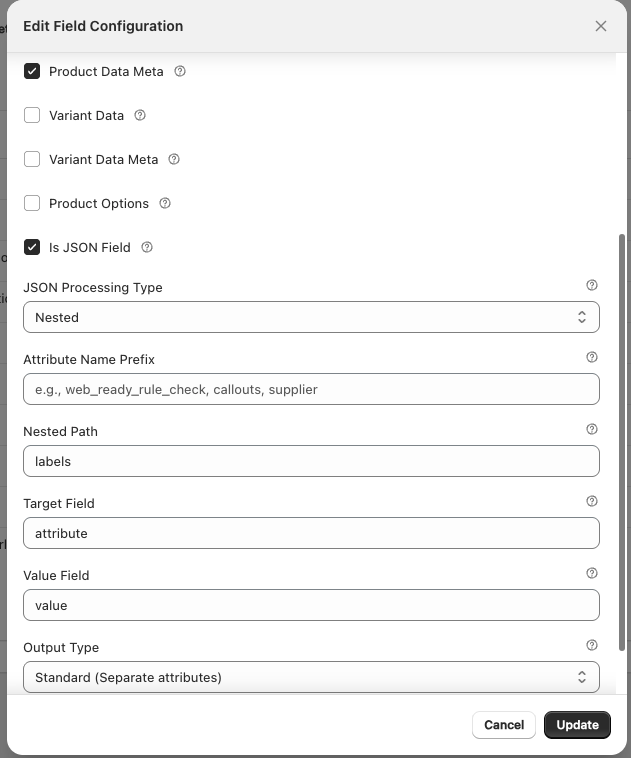
Configuration
Label: Tech Specs
Namespace: pa
Key: techSpecs
☑ Product Data Meta
☑ Active

JSON Processing:
  Processing Type: Nested
  Attribute Name Prefix: (leave blank)
  Nested Path: labels
  Target Field: attribute
  Value Field: value
  Output Type: Standard (Separate attributes)
Configuration Parameters
| Parameter | Description | Example |
|---|---|---|
| Nested Path | Path to the array containing target data | labels |
| Target Field | Field name to use as attribute key | attribute |
| Value Field | Field name containing the attribute value | value |
| Output Type | How to store extracted data | Standard (Separate attributes) |
Result: Extracts attribute-value pairs from the nested labels array:
Screen Size (Inches):6.5Display:Super Retina XDR OLEDDisplay Resolution (px):2736 x 1260, 460ppi, HDR TrueToneStorage Capacity:256GBMemory: (empty value)
Managing Field Configurations
Viewing Configurations
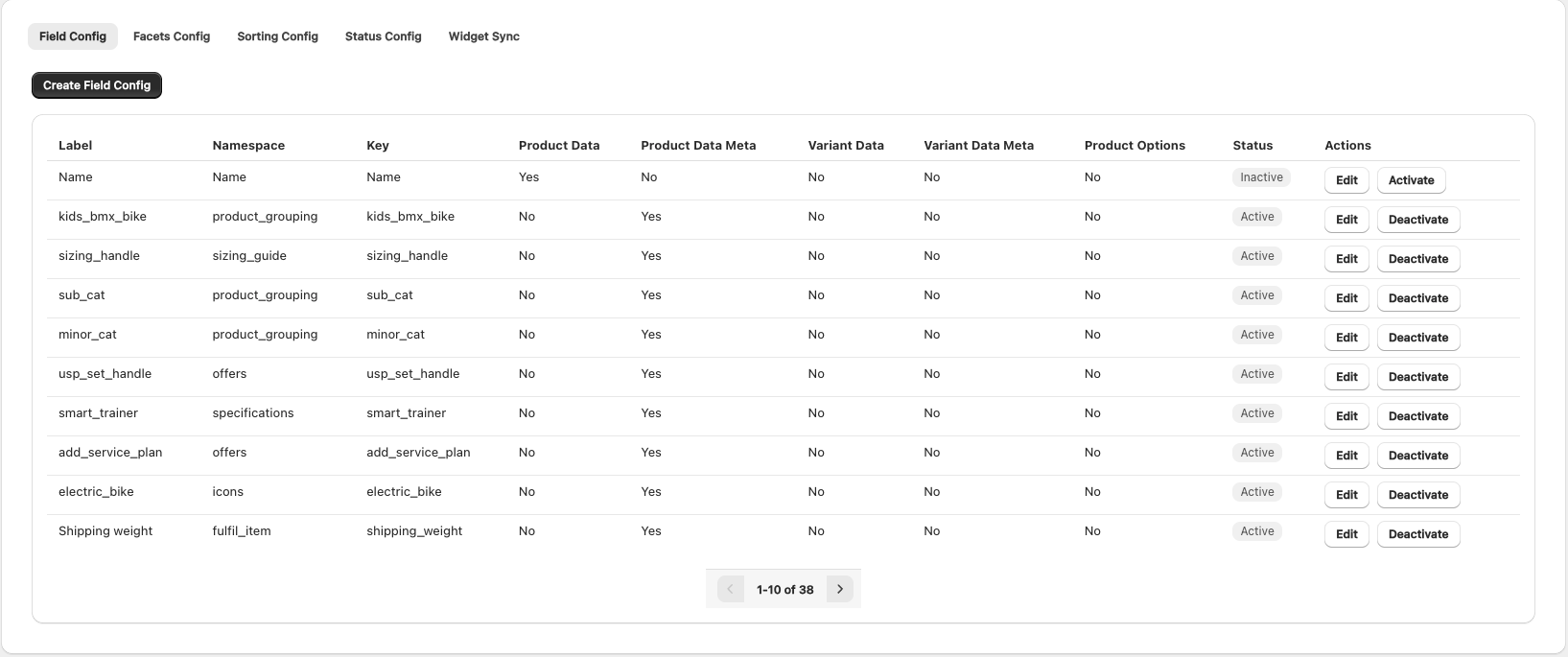
The Field Config tab displays all configured fields in a table:
| Column | Description |
|---|---|
| Label | Display name of the field |
| Key | Metafield key |
| Namespace | Metafield namespace |
| Type | Field type (Product Data, Product Meta, Variant Data, Variant Meta) |
| Status | Active or Inactive |
| Actions | Edit or Delete |
Editing a Configuration
- Locate the field in the configuration list
- Click the Edit icon (pencil)
- Modify the configuration in the modal
- Click Save
After modifying field configurations, you must perform a product sync to apply changes to existing products.
Activating/Deactivating Fields
Toggle the Active checkbox to enable or disable tracking for a field without deleting the configuration.
- Active: Field is synced during product synchronization
- Inactive: Field is ignored during synchronization