Installation and Setup
This guide walks you through installing the PA DiscoveryOS Shopify App and completing the initial setup.
Prerequisites
Before you begin, ensure you have:
- A Shopify store (any plan: Starter, Basic, Advanced, or Plus)
- Admin access to your Shopify store
- Contact with Particular Audience for client credentials
Step 1: Install the App
From Shopify App Store
- Navigate to the Shopify App Store
- Search for "PA DiscoveryOS"
- Click on the app listing
- Click Add app
- Review the requested permissions
- Click Install app
The app requests permissions to read products, manage configurations, and track events. These permissions are necessary for the app to function properly. Review the Technical Requirements section for details.
Installation Confirmation
After installation, you'll be redirected to the app's home page within your Shopify admin. The app is now installed, but requires configuration before it can sync products.
Step 2: Request Client Credentials
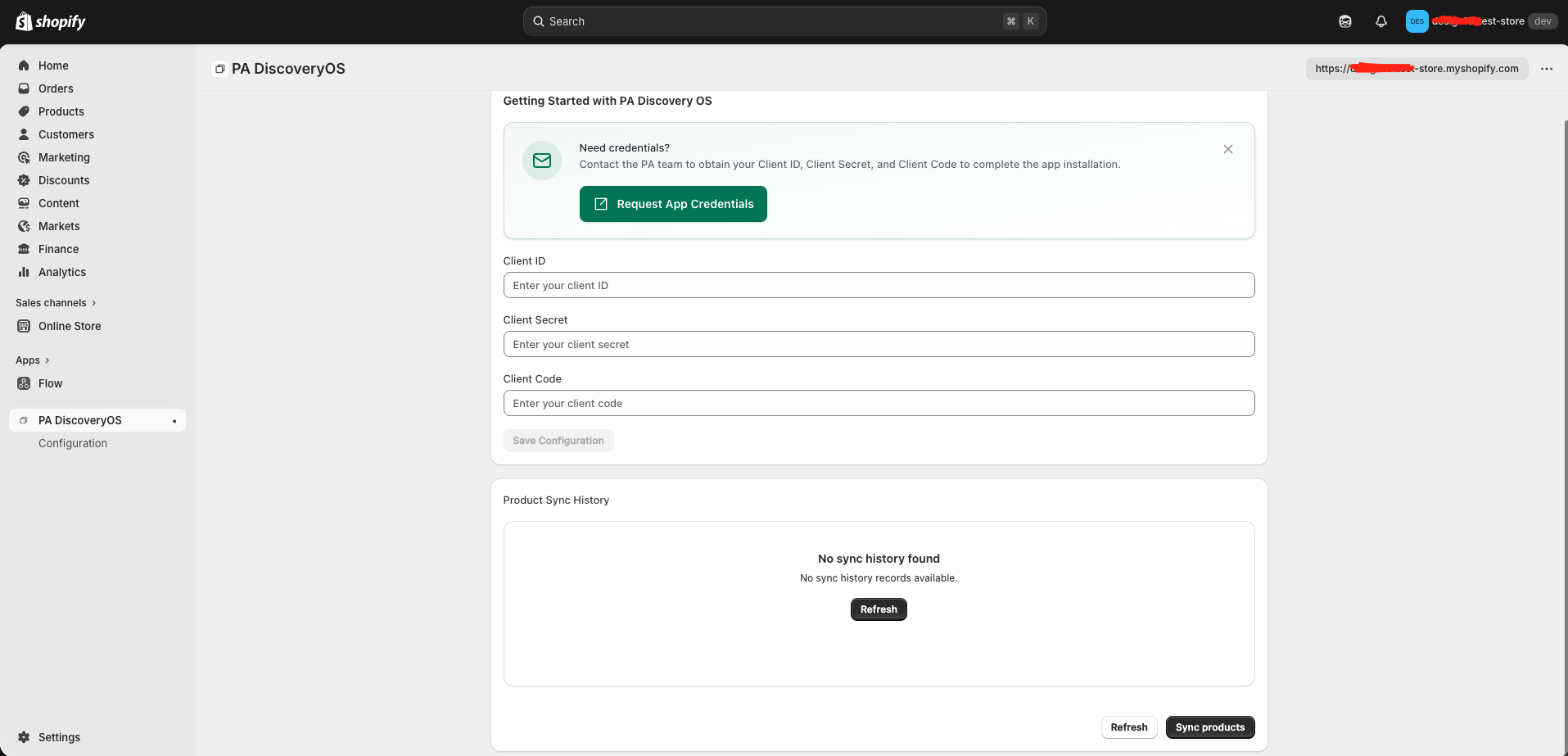
On your first visit to the app, you'll need to obtain credentials from Particular Audience.
Requesting Credentials
- On the app home page, locate the Client Credentials section
- Click the Request App Credentials button
- A form will appear requesting your information
Complete the Request Form
Fill in the required information:
| Field | Description | Required |
|---|---|---|
| Name | Your full name | Yes |
| Your business email address | Yes | |
| Company | Your company or store name | Yes |
| Message | Any additional information or questions | Optional |
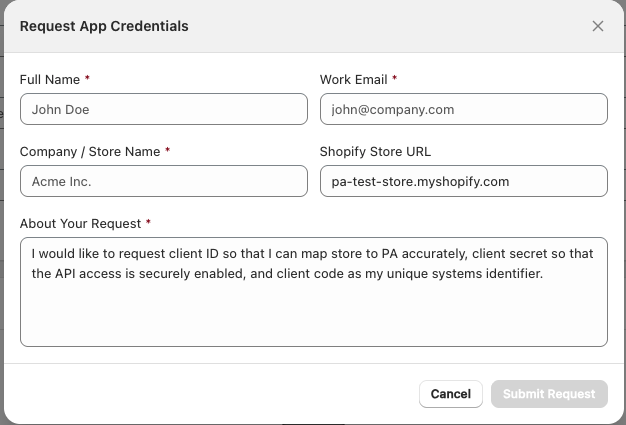
- Click Submit Request
What Happens Next
After submitting your request:
- Particular Audience receives your credential request
- Our team reviews your request (typically within 1-2 business days)
- You'll receive an email with your credentials:
- Client ID
- Client Secret
- Client Code
Keep your credentials secure. Never share your Client Secret publicly or commit it to version control systems.
Step 3: Configure Client Credentials
Once you receive your credentials from Particular Audience, enter them into the app.
Enter Credentials
- Return to the app home page in your Shopify admin
- Enter your credentials in the form:
| Field | Description |
|---|---|
| Client ID | Your unique client identifier (provided by Particular Audience) |
| Client Secret | Your authentication secret (provided by Particular Audience) |
| Client Code | Your organization's client code (provided by Particular Audience) |
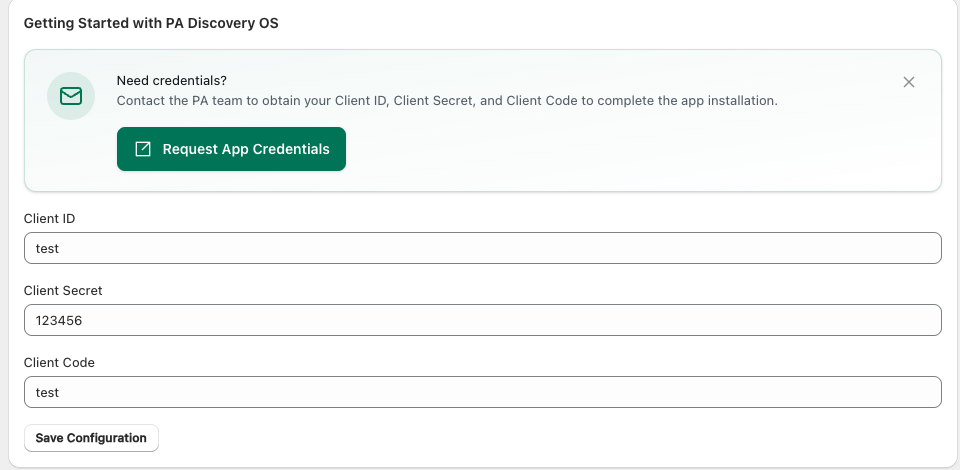
- Click Save Configuration