Widget Synchronization
Widget synchronization is the process of pulling your widget configurations from Particular Audience's platform into your Shopify store as metaobjects. This guide explains how to run and monitor widget sync.
Overview
Widget synchronization:
- Fetches widget data from Particular Audience's Widgets API
- Filters widgets by type (recommendation, merchandising, bundle)
- Writes widget configurations into the corresponding Shopify metaobject definitions
- Tracks sync outcome and stores sync history for status and troubleshooting
Performing a Widget Sync
Accessing Sync
- Navigate to the app home page
- Use the control that triggers Configurations > Widget Sync > Sync Widgets now
Sync Process
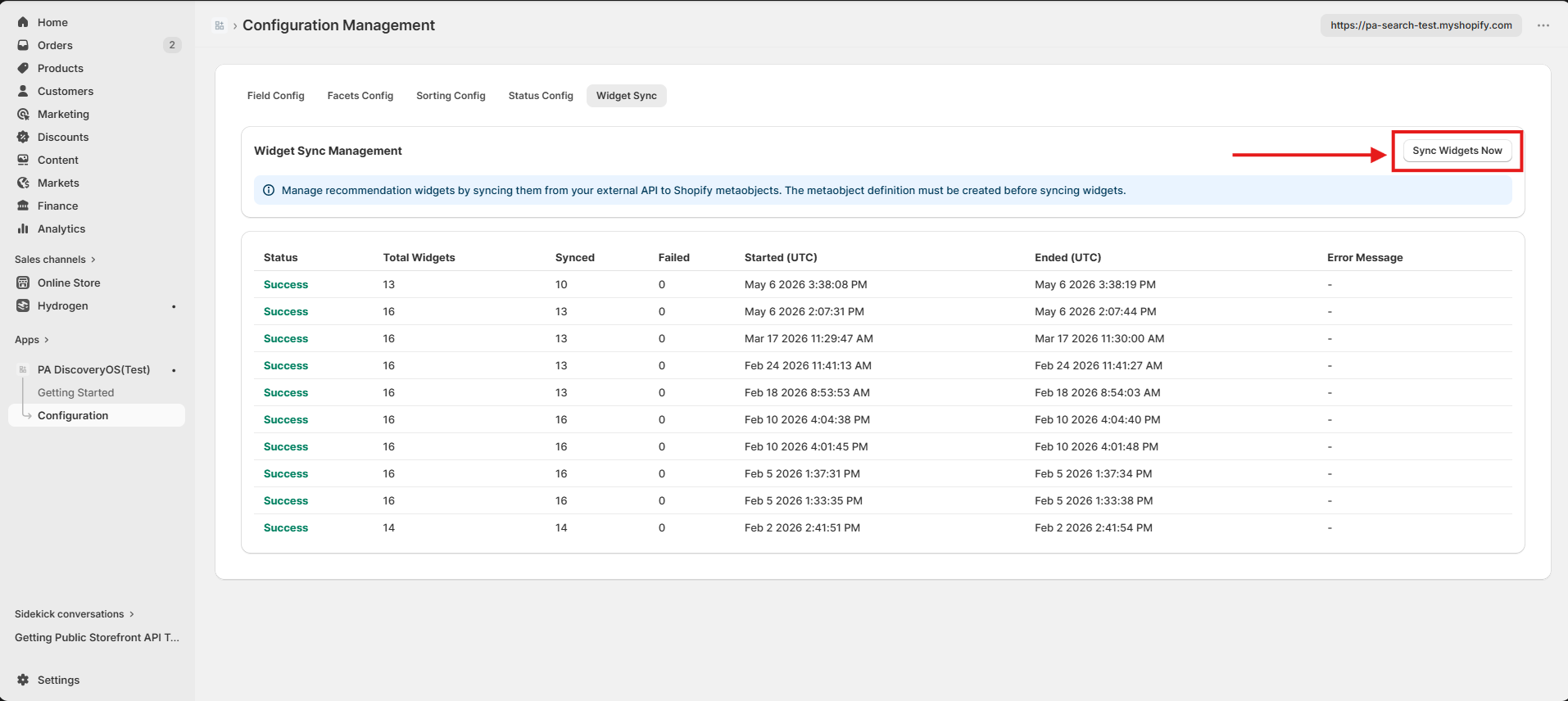
Monitoring Sync Progress
When synchronization is done, the app can show:
- Status: Success, Partial, or Failed
- Total Widgets: Total number of widgets fetched
- Synced: Number of widget configurations written successfully (It may not sync all widgets, it will sync only widgets that are of type recommendation, merchandising and bundle)
- Failed: Number that could not be written
- Error Message: Details for any failures (when available)
Sync Duration
Sync duration depends on:
- Widget count: Number of widgets and configurations to process
- Metaobject types: How many widget types (and thus metaobject types) are involved
- API response times: Particular Audience and Shopify API latency
- Network conditions: Connection speed and stability
Once sync done, it will store widget data as metaobject
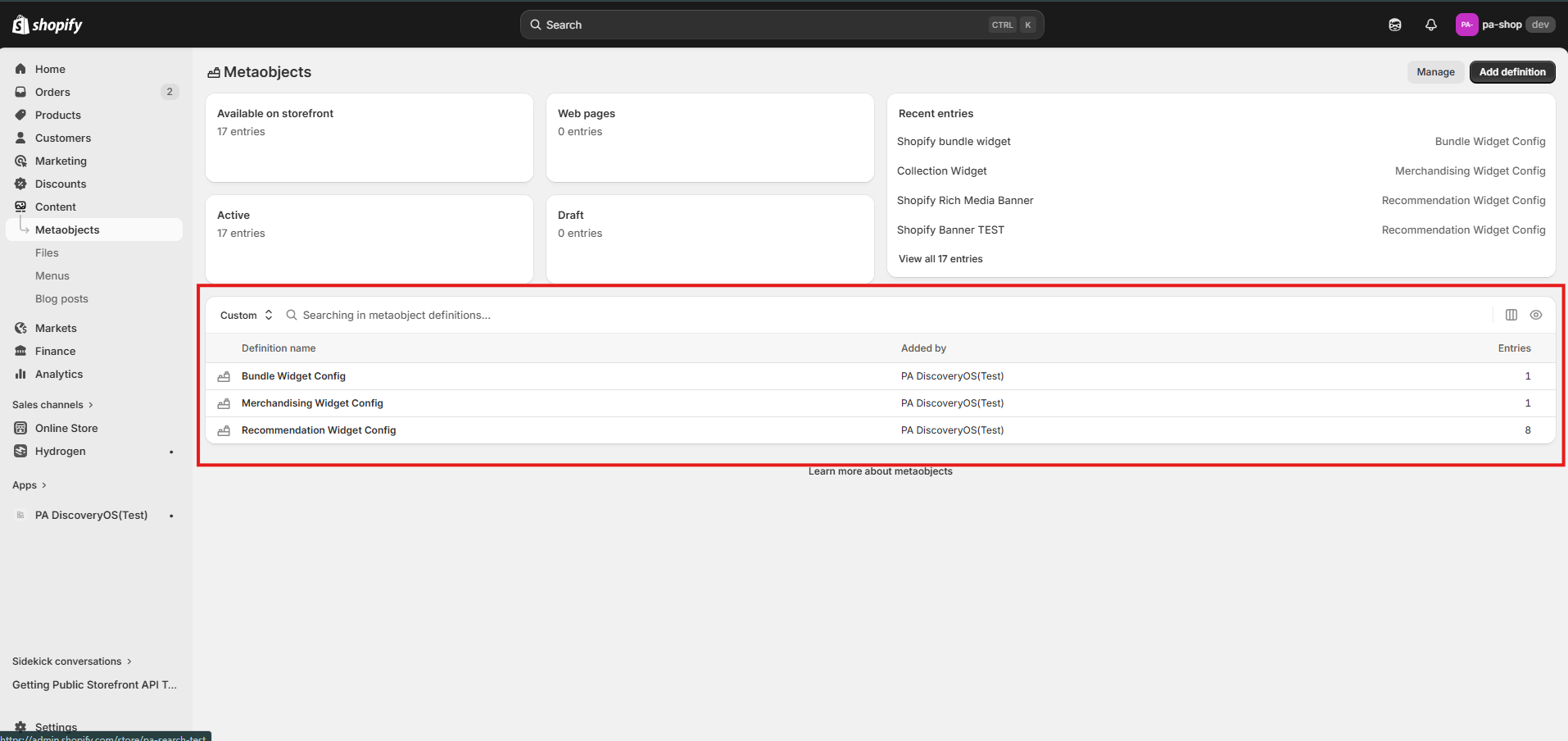
Background sync
Widget sync is typically quick. If the process is triggered from the app, you can continue using the app while it completes; status is available via sync status.
Sync History
Sync History Information
Each sync entry can show:
| Field | Description |
|---|---|
| Status | Success, Partial, or Failed |
| Total widgets | Number of widgets processed |
| Synced count | Number written successfully |
| Failed count | Number that failed to sync |
| Start time | When the sync began |
| End time | When the sync completed |
When to Perform Manual Sync
Recommended manual syncs
-
After widget changes in Particular Audience:
- New widgets created
- Widget names or types updated
- Widgets removed or reassigned
-
After metaobject setup:
- New metaobject definitions added for widget types
- Metaobject definitions updated to match expected widget types
-
Initial setup:
- First-time configuration of widgets in the app
- After reconnecting or re-authenticating with Particular Audience
-
After errors:
- A previous sync reported Partial or Failed and you’ve fixed the cause (e.g. metaobject definitions or API access)